
Practice Text Formatting
Downloadables
Download the Sheat-Sheet to remember the formatting rules
Text Formatting and Structuring Principles - CheatSheet Ver01 [PDF]
Download the Plain Text Document for the Formatting Assignment
Plain Text for Formatting Assignment [Word]
See the example of formatting here
EXAMPLE for the Text Formatting Assignment [PDF]
Practical Formatting Techniques
In the previous lesson, we discussed the significant disparities between plain text, structured and formatted text, and improperly formatted text. In this lesson, we will delve into the practical aspects of text formatting, where I’ll share some valuable insights with you.
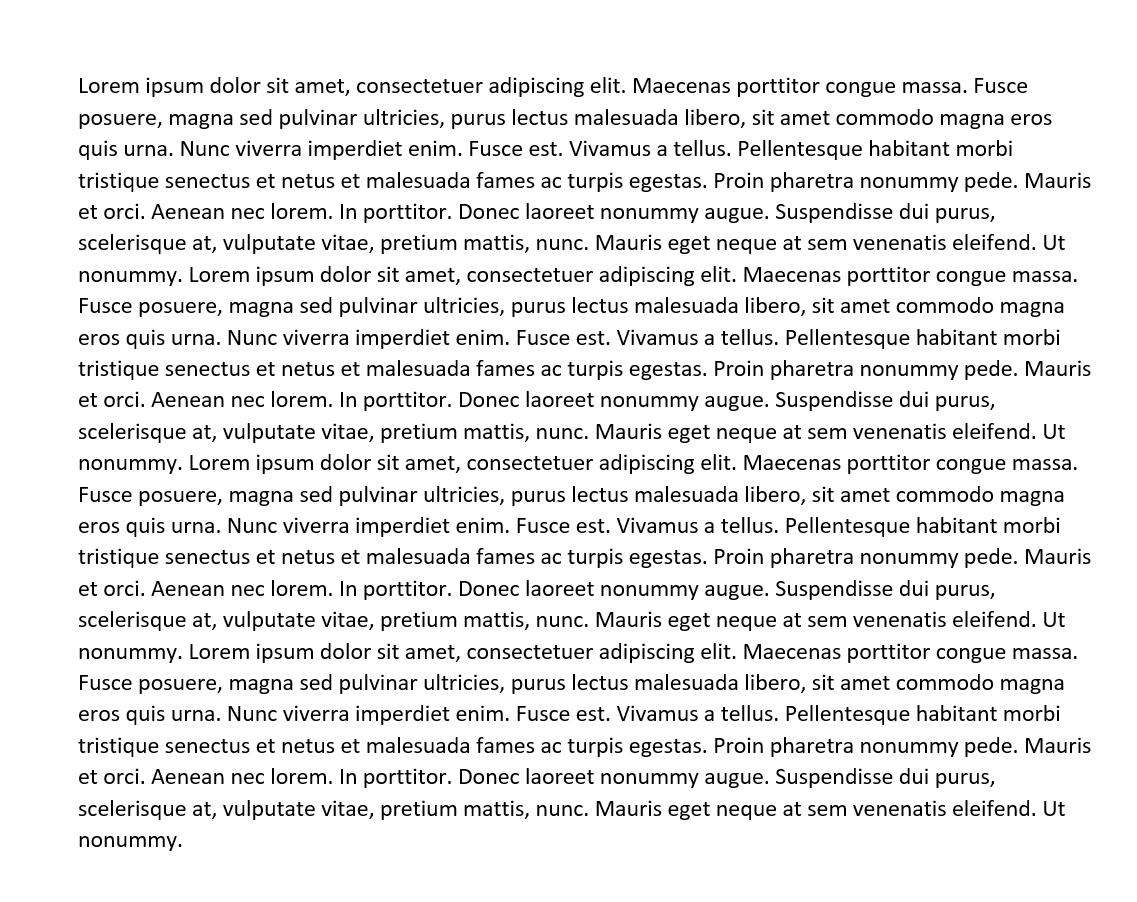
Firstly, let’s revisit plain text:
Now, let’s examine improper formatting:
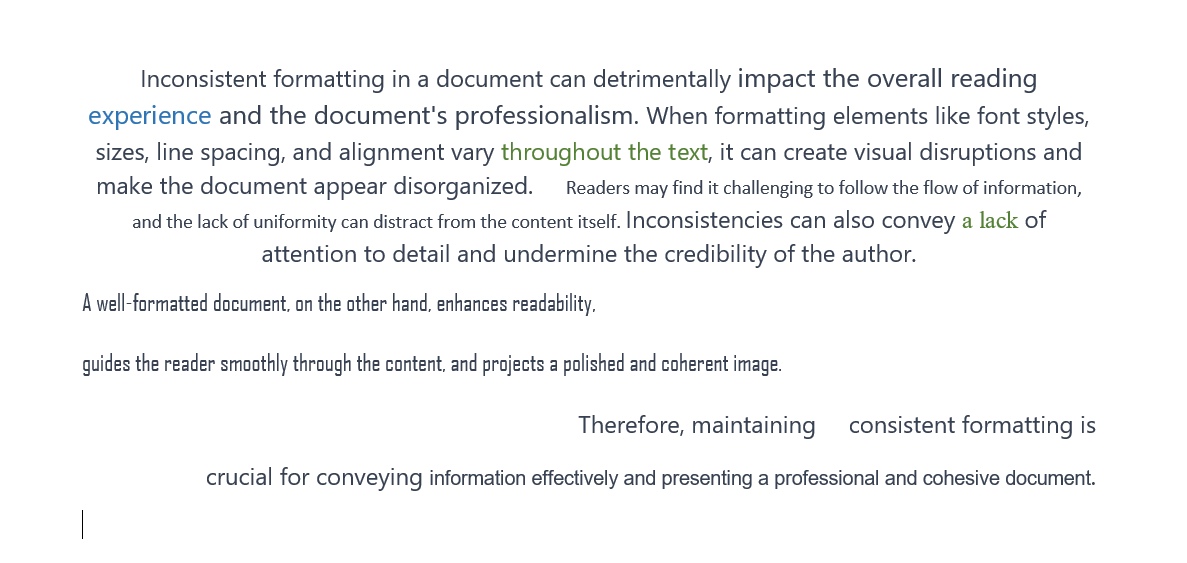
Take a look at this text and consider whether it’s readable or if it induces a headache. Improper formatting is often a common mistake made by beginners who unintentionally copy text along with its formatting. This lesson will also address the crucial skill of copying text without carrying over its formatting.
How to Copy Text without Formatting
Learn to extract text from a formatted webpage and seamlessly insert it into your document without incorporating formatting styles. Discover how to retain certain formatting elements while avoiding unnecessary complications by watching the video instructions.
How to Format Text Efficiently
Now, let’s focus on formatting plain text to enhance readability. You’ll be provided with a sample of both formatted and unformatted text. Your assignment is to format the unformatted text to achieve the same result.
I will demonstrate the process using Microsoft Word and Google Docs. Keep in mind that most word-processing programs and text editors share similar functionality. To facilitate your understanding, let me introduce you to the key elements of the Word interface:
- Ribbon: Navigate tabs and sections, including options to hide or unhide.
- Styles: Utilize headings and sub-headings to enhance document structure.
- Basic Formatting: Adjust font, font size, and emphasis for clarity.
- Lists and Paragraphs: Organize content using bullet points, numbered lists, and paragraph settings.
Hotkeys for Text Editing
Boost your efficiency with these essential hotkeys:
Basic Formatting:
- Bold: Ctrl + B
- Italic: Ctrl + I
- Underline: Ctrl + U
Lists:
- Bulleted List: Ctrl + Shift + L
- Numbered List: Ctrl + Shift + L (again)
Styles:
- Apply Heading 1 Style: Alt + Ctrl + 1
- Apply Heading 2 Style: Alt + Ctrl + 2
- Apply Heading 3 Style: Alt + Ctrl + 3
Clear Formatting:
- Clear Formatting: Ctrl + Spacebar
Undo and Redo:
- Undo: Ctrl + Z
- Redo: Ctrl + Y or Ctrl + Shift + Z
By mastering these techniques and shortcuts, you’ll significantly expedite your text editing process. Now, let’s proceed to hands-on exercises to reinforce your understanding.